What a feed is and why an OpenCart store needs one
A feed is a file in which every product is described the way Google requires: name, price, availability, page link, photo, identifier. Without it you cannot launch Shopping ads in Google Shopping or free product listings: Merchant Center takes product data from the feed, not from your site.
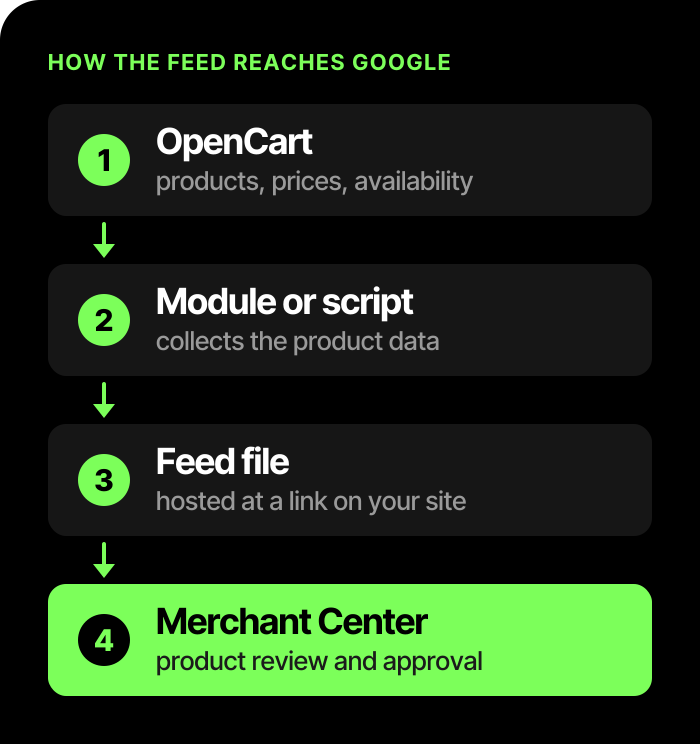
OpenCart does not create such a file by itself. The product card stores everything needed, but in its own format, so you need an intermediary between the store and Google: a ready-made module or a developer's script. It goes through the catalog, collects the data from the product cards and writes the file at a permanent address, and Merchant Center picks it up on a schedule: under Google's rules as of November 2026, daily, weekly or monthly. The requirements for the file are collected in Google's product data specification; the owner does not have to read it, and the main points are below.
The feed's path from the store to Google:
What must be ready before the feed: the site and the account
A perfect feed will not help if Google does not approve the store itself. The details are in the article Google Merchant Center: what it is and how to set it up; in short, check four things: an order can be placed without failures and over a secure connection (the padlock in the browser's address bar); contacts and return terms are easy to find; the site is verified and claimed by your account; shipping is set up in the account, and its cost matches the site.
What product data Google needs
For every product Google wants to see seven things: an identifier, a title, a description, a link to the page and to the main photo, the price and availability. The rest (brand, barcode, manufacturer part number, category structure, labels for grouping in Google Ads) is optional but desirable: the more complete the card, the fewer questions Google has about the product.
Where the pitfalls are for an OpenCart store:
- Identifier. Google recommends using the SKU. What matters is that it does not change: according to Google's help, changing an identifier creates a new product and resets its impression history. If SKUs are not filled in on every card, the developer will take another stable value from the store's database.
- Title. No price, discount or store name.
- Photo. No logos, watermarks or promo badges. Under Google's rules as of November 2026, from January 31, 2027 the minimum photo size is 500×500 pixels, and 1500×1500 or more is recommended. It is worth reshooting small photos now.
- Price and availability. They must match what the buyer sees. The price in the feed goes together with a currency code, and availability is one of four Google values (in stock, out of stock, preorder, backorder), not a label from the site such as "Expected".
- Barcode and brand. Under Google's rules as of November 2026, a barcode is recommended for every product that has one; you must not invent one or enter zeros. The standard OpenCart product card has separate fields for barcodes, manufacturer part number and brand. Whether they are filled in is the first thing to check before you order a feed.
Options and variants
If size or color is set up as an option of one product, each variant must get into the feed as a separate item with its own identifier and a shared group code: this is how Google understands that it is one product in different versions. Whether your module can do this is the first question when choosing one.
Path one: a ready-made module
For a standard catalog a ready-made extension is usually enough. Choose based on the developer's documentation and check four things: support for your OpenCart version (3 and 4 are built differently), export of variants as separate items, where the module takes the brand, barcode and identifier from, and whether it updates the file on a schedule by itself. We do not recommend a specific module: the extension market changes faster than articles do.
A separate question for the developer: how the module sends data to Google. A file at a link is a reliable path. If the module sends products directly through the Content API for Shopping, then according to Google's announcement, support for that interface ended on August 18, 2026: ask whether there is a version on the Merchant API.
Path two: a developer and a custom script
When the catalog is non-standard, there are many options, or you need your own rules (not to send some products, to label them by margin), a developer writes the feed. On a schedule the script builds the finished file in a private folder on the server instead of generating it on every Google request: on a large catalog that is an unnecessary load.
The timeline depends on the catalog: it is harder when there are options and several currencies, so agree on it with the developer before work starts. We have put together what exactly to order and how to accept the result in a separate document.
A technical brief for the developer (what exactly to set up and how to check it) and a prompt for AI, if you decide to do it yourself, are in our Telegram: get the file.
How the feed is connected to Merchant Center and how often to update it
Connecting takes a few minutes: in Merchant Center you create a product data source, enter the file address, country and language, choose a schedule and wait for the first fetch. The address must lead straight to the file, not to a site page; if the file is password-protected, you enter the login and password in the source settings.
Keep the schedule simple. If your prices change once a week and the feed updates once a month, then in the worst case a product shows with the wrong price for three weeks, and Google will notice it before you do. Wherever prices and stock move, set a daily update. According to Google's help, a product whose data has not been updated for 30 days gets a mark saying it needs an update.
Also make sure that Google's robots are not blocked by your site's bot protection, and that the file is created before Merchant Center picks it up, otherwise Google gets yesterday's data every day.
What the owner should check after setup
Five checks that do not need a developer:
- Open the feed link in a browser. It should open a file with a list of products, not a site page and not an error.
- Count the items. There should be as many as there are products and variants you wanted to advertise: if the catalog has 800 products and the feed has 120, the module filtered something out.
- Take 5–10 different products: with a discount, out of stock, with options. Compare the price, availability, link and photo with the site pages.
- After the first fetch, open the product list and the issues list in Merchant Center. A file can load without errors and the products still go to review: these are different processes.
- Fix the cause at the source: in the product card or in the module settings. Manual edits inside Merchant Center override subsequent fetches, and a month later nobody will remember where the value came from.
Why Google disapproves OpenCart products
Almost all feed rejections come down to five causes, and none of them is about code.
| Cause | How it arises on OpenCart | What to do |
|---|---|---|
| The price does not match the site | The feed updated yesterday and the price was changed today; the module adds a markup for the feed; the theme inserts the price with a script | Daily updates and a check of the module settings |
| Currency | OpenCart stores prices in the base currency and calculates the rest at an exchange rate | For Ukraine, use the hryvnia in the feed, the card and at checkout; open the site in incognito mode |
| Availability | Google does not understand labels such as "Expected" | One of the four availability values; for a preorder, also the date it becomes available |
| Duplicate identifiers | The module builds the identifier from the SKU, and the SKUs are identical or empty | A unique identifier for every product |
| No barcode | The barcode exists, but it is not in the feed | Pass the barcode; if there is none at all, pass the brand and manufacturer part number. Zeros and invented codes do not work |
Now each cause in more detail.
The price does not match the site. The feed updated yesterday and the price was changed today; a promotion ended on the site but stayed in the feed; the module adds a markup for the feed; the store theme inserts the price with a script in the browser, while Google reads the page as the server delivered it. It is fixed by a daily update and a check of the module settings.
Currency. OpenCart stores prices in the base currency and calculates the rest at an exchange rate. For selling in Ukraine, the feed, the card and the checkout must show the hryvnia. Open the site in incognito mode: Google sees the default currency too.
Availability. Labels on the site such as "Expected" mean nothing to Google; the feed needs one of its four values. A product you are taking off sale permanently is better removed from the feed than marked as out of stock. A backorder or preorder product also needs an availability date, in the feed and on the page.
Duplicate identifiers. Two different products with the same identifier, or one product twice in the same feed. A common cause on OpenCart: the module builds the identifier from the SKU, and in some cards the SKUs are identical or empty.
No barcode. If a product has a barcode but the feed does not, Google may limit impressions. If it has none at all, pass the brand and manufacturer part number, and for made-to-order items there is a separate "no identifiers" flag. Zeros and invented codes lead to disapproval.
Products already disapproved? The checklist of causes is in the article why products are not showing in Google Shopping.
When it is better to hand the setup to someone
You can build the feed yourself if the catalog is small, the cards are filled in neatly and there are almost no options. It gets harder when there are hundreds of products, several currencies, or Google has already disapproved part of the products.
AX Marketing has an in-house developer with OpenCart and WordPress experience, so we handle the feed, the account and the campaigns in one place. Details are on the page turnkey Google Shopping and Merchant Center setup. If ads have already been launched and the result does not satisfy you, start with a Google Ads account audit.
Frequently asked questions
Do I need a module, or can I do without one?
Merchant Center does not require a particular module: it needs a file of the right format at a link, and it does not matter who creates it, an extension or a developer's script. A regular catalog export from OpenCart will not work: the column names and values must match Google's requirements.
OpenCart 3 and OpenCart 4: is there a difference?
The principle is the same, the cards differ: OpenCart 4 introduced product variants with their own SKUs, price and stock, while in OpenCart 3 these are options. The module must support your version; check this in the documentation before you buy.
How long does product review take?
According to Google's help as of November 2026, review of products for ads and free listings usually takes up to 3–5 business days. This is a guideline, not a deadline you can rely on.
What should I do if Google disapproved a product?
Look at the reason in the issues list, fix the data at the source (the product card or the module settings), wait for the next feed fetch and, if the error remains, submit a request for re-review.