Disapproved products or a suspended account: these are different problems
Google checks your data at two levels, and what you do depends on which one you are dealing with.
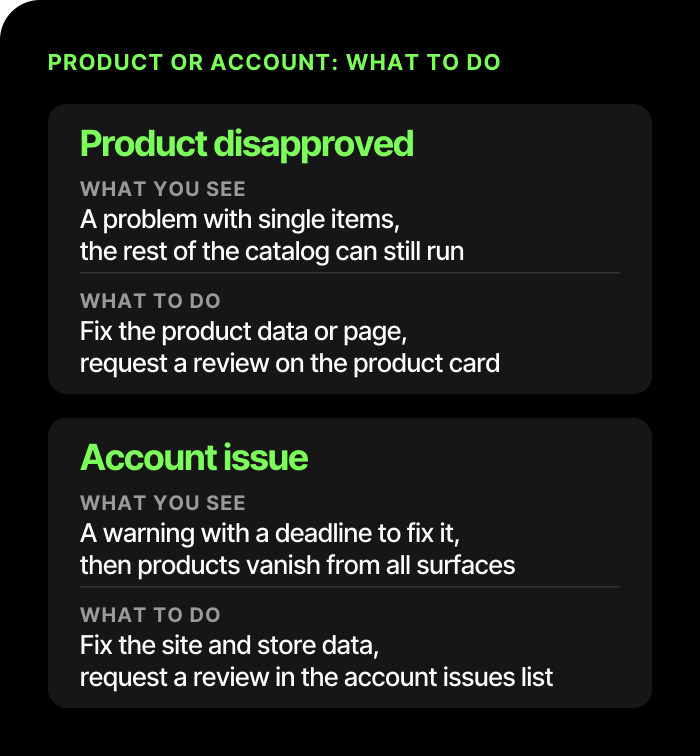
- A disapproved product. One item fails the product data requirements or does not match your website. A disapproval can apply to a single country or a single way of advertising, so check where exactly the product is blocked from showing. The rest of the catalog may keep running.
- An account-level problem. Google decides that the store as a whole breaks the rules: the data, the website or the terms of sale. A warning with a deadline comes first. If the problem is still there at the deadline, the account is suspended and your products disappear from every surface.
As of November 6, 2026, Google's help pages say a warning usually gives you 7 or 28 calendar days, and during that time your products still show. Serious violations are handled differently: the account can be suspended at once, without a warning.
The difference between the two cases in brief:
How to find the reason in Merchant Center
First read what Google actually wrote. The reason is in three places:
- The list of products that need attention. Each item shows its issue, and the product card has an explanation and a link to fix instructions.
- The block of setup and policy issues. It appears on the same page and as a banner at the top of the account. This is the account level.
- An email to the account owner. It describes the violation and, if there is a warning, the deadline.
Google changes the interface often, so go by what a section is for, not by the exact button names.
If the product is approved and there is no block, check the other reasons why products do not show in Google Shopping.
The most common reasons products get disapproved
Here are the five reasons in brief and where to start. Each one is covered in detail below.
| Reason | Where to look | What to do first |
|---|---|---|
| Price or availability does not match your website | The feed and the product page | Line up the feed update schedule with your website updates, turn on automatic item updates |
| Shipping and returns do not match | Merchant Center settings, the website and the cart | Check the terms for every region you ship to; return terms must be easy to find |
| The product page does not work | 404 and 5xx errors, redirects, access for Google's crawler | Check the firewall, robots.txt, the buy button and the URLs in the feed |
| A restricted category | Google's policy for your category | Read the policy before you upload such products to the feed |
| The data does not meet the specification | Brand, identifiers, photos, Google category, size and color for clothing | Fix it in bulk in the CMS or the feed |
Price or availability does not match your website
Google compares your feed data with the product page. If the price or availability differs, the product is disapproved, sometimes as a precaution. After you fix the data, Google re-crawls the page on its own within a few hours or days; a request to re-check the site only speeds this up, and it is worth disputing a disapproval if you believe it is wrong. The help pages say plainly that too many products with the wrong availability can lead to an account suspension.
What to do: line up the feed update schedule with your website updates. If prices and stock change often, Google recommends turning on automatic item updates. The price in the cart must not be higher than the price in the feed.
Shipping and returns are missing or do not match
Shipping terms in Merchant Center must match what a shopper sees on your site and in the cart, for every region you ship to. A shopper should be able to find the full return terms easily: time limits, method, who pays for shipping. If some products cannot be returned, say so, but only if such restrictions comply with the law.
The product page does not work
Google disapproves a product when its page returns a 404 or 5xx error, redirects to a broken page or cannot be reached by Google's crawler. Check three things:
- whether your firewall or hosting blocks Google's requests;
- whether robots.txt blocks AdsBot-Google and whether Googlebot is allowed;
- whether the buy button and checkout work on the page.
After a catalog restructure, the feed often keeps sending old URLs, so check the links in the feed against the current website.
A restricted category
Google allows some groups of products only with limits, or not at all: medicines and supplements, alcohol, and gambling-related items. The rules depend on the country. Before you upload such items to the feed, read the policy for your category. For medical products, Google states plainly that for serious violations the account can be suspended without a warning.
The product data does not meet the specification
Common small issues: a missing brand or identifiers that are required for your product (do not invent values that do not exist), images that are too small or promotional, a wrong Google category, and missing size, color or gender for clothing. Errors like these are usually fixed in bulk in the CMS or the feed.
Misrepresentation and account suspension
Google's Misrepresentation policy requires you to show shoppers honestly who is selling, how to contact you, the full price, what delivery costs and what happens on a return. The help pages list these among the causes of problems:
- contact details are missing or differ from those in Merchant Center;
- there is no return and refund policy;
- placeholder text or images are left on the site, and links do not work;
- shoppers cannot complete an order, the payment page is not secure (HTTPS is required), or an ordinary purchase demands data a buyer should not have to give, such as a business registration number or a VAT number;
- browsing products requires logging in.
Google may ask you to verify your identity or business with documents. Until verification is complete, the review request button may be inactive.
There is a worse scenario. If Google treats the violation as serious (invented seller details, a false address, dishonest pricing or payment terms), the account is suspended without a warning and, in the help page's own words, is reinstated only in compelling circumstances. This list is not exhaustive. Compare Google's message with the specific policy item and check your website, your company data and your product data.
The order in which to fix things
- Collect every problem: product errors, account issues and everything in Google's emails.
- Fix the website: contacts, shipping and return policies, the cart, broken links, robots.txt.
- Fix the data source: the feed or the CMS. If a product was edited by hand in Merchant Center, check those edits: they take priority over the file data and can override feed updates.
- Wait for the feed to refresh and check a few products from different groups to see whether the error is gone.
- Complete verification if Google asks for it.
- Only then request a review, checking the steps against the page for your specific error and the message in your account.
How to request a review
For an account-level problem, open the list of setup and policy issues, mark that you fixed the problem (or that you disagree with it) and send the request. A review covers all issues for your selling country. For a single product, the request is made in its card. For the "landing page not working" error, Google describes a re-crawl after technical fixes that usually takes 24 to 48 hours. This is not the time frame of an account review for a rule violation. For the request procedure, see the message about your specific error.
Google gives different time frames in different places: from 3 to 7 business days in some sections of the help pages, while the general description mentions up to two weeks. Plan with a margin.
There are limits too:
- during a warning you can request one review ahead of time, and at the end of the period Google checks the account itself;
- you may be able to dispute a given decision only once, so before you send the request, check the restrictions in the issue message and prepare your evidence;
- failed attempts start a cool-down: the review button is locked, and its length can grow with each failed attempt. According to the help page, Google support cannot shorten it.
So never send a request "just to test". Every failed attempt uses up your limit.
What not to do
- Do not create a new Merchant Center account to replace the suspended one. Google's rules call this circumventing systems: trying to come back through new accounts after a suspension counts as a serious violation.
- Do not remove most of your products before the review and add them back after approval. Google describes this as bypassing the review and suspends the account for it. Fix the data instead of shrinking the catalog.
- Do not leave a suspended Google Ads account linked. A suspended account linked to Merchant Center is a violation too, so deal with it first.
When to get a specialist
Get help if:
- there are many problems, the catalog has hundreds of products, or the feed is generated by a separate integration;
- the error comes back after you fix it;
- the account was suspended for misrepresentation and you cannot tell what exactly Google objected to;
- a review has already failed, and the next attempt could start a cool-down.
In that case we find the causes, fix the feed and the website, and prepare the review request. The decision is Google's, so neither reinstatement of the account nor timing can be guaranteed. If you have run ads already and the result is poor, start with an audit of your ad account. For the wider picture of the tools, see the page on Google Ads advertising. And to hand Merchant Center, the feed and Shopping campaigns over to specialists, see Google Shopping and Merchant Center setup.
Frequently asked questions
How long does a repeat review take?
It depends on the type of problem. For the "landing page not working" error, a re-crawl after the fixes usually takes 24 to 48 hours. For an account, Google names up to 7 business days, and one section mentions up to two weeks as well. No exact time can be given in advance.
How many times can I request a review?
There is a limit, and Google does not give one number for every case. Google warns that you may be able to dispute a given decision only once, and that failed attempts start a cool-down that can grow.
My products are disapproved but the account works. Is that dangerous?
Yes, if there are many. Products that fail the review do not show, and widespread mismatches with your site (for example, in availability) can lead to a warning and then to an account suspension.
Can I get a suspended account back?
Sometimes, if you fix the causes and pass the review. But there is no guarantee. For serious violations Google reinstates accounts only in compelling circumstances, and after failed attempts a cool-down starts.
Can I create a new account if the old one is suspended?
No. Google treats trying to come back through new accounts as a serious violation: such accounts are suspended without a warning, and posting content again is not allowed. The right way is to fix the cause and request a review in the existing account.