What connecting WooCommerce to Merchant Center gives you
The connection gets your products into Google Shopping: cards with a photo and price appear on the Shopping tab, in free listings and in product ads. Merchant Center works here as a storefront for Google: it receives the catalog, checks it and passes it on to be shown.
There is one condition you cannot get around: Google takes the data from your product cards in WooCommerce. Names, descriptions, prices, photos, availability, color and size reach Merchant Center exactly as you filled them in. That is why the connection starts not with a plugin but with an audit of the catalog: the tidier the cards, the fewer products get disapproved later. After approval a product becomes eligible for free listings, but that does not promise it will actually show (per WooCommerce documentation).
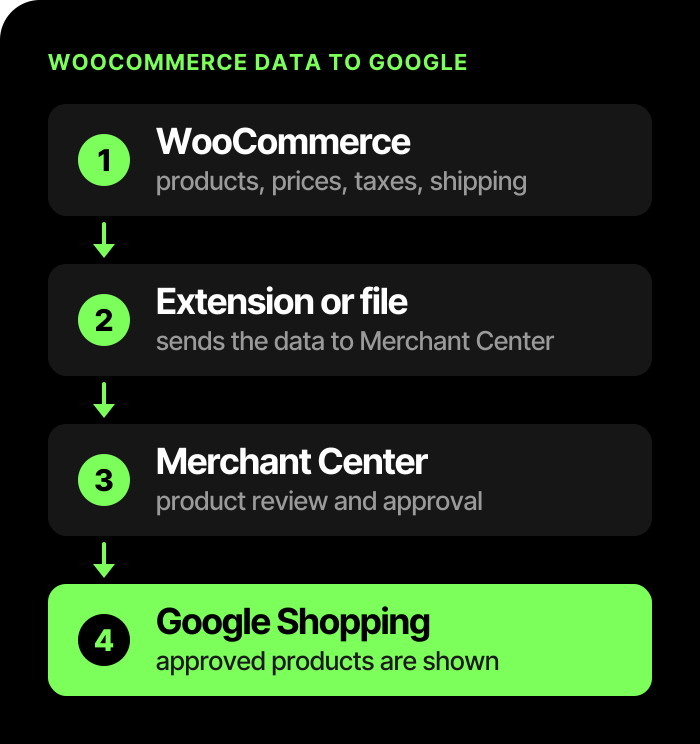
The path of data from the store to Google:
Extension or feed file: which method to choose
For an ordinary store we recommend starting with the official Google for WooCommerce extension and keeping the feed file for non-standard cases. The extension sends the catalog to Merchant Center directly and keeps it up to date on its own: change a price in the product card and it updates in Google too. It also verifies the site and links Merchant Center to Google Ads. Ukraine, the hryvnia, and the Ukrainian and Russian languages are supported by the extension, although that does not promise that the account will be approved.
A feed file is a separate document with all your products at a permanent address, which Merchant Center picks up on a schedule (per Google's help). It is created by a generator plugin or by a developer. You choose this route when you need to control every field manually, when the store works through a multi-client Merchant Center account (the extension does not support it), or when the extension does not fit for some other reason.
What to know before you choose:
- only physical products go through the extension; services and digital goods are not passed this way;
- do not send the same products by both methods at the same time: duplicates appear, and Google then disapproves them;
- connecting through the extension is simpler and faster, while a feed file for non-standard requirements is more complex; the timeline depends on the store, so agree on it with the developer before work begins.
What to prepare before connecting
Google checks not only the products but also the site itself, so before connecting, go through the store as a buyer would. The site requirements are covered in detail in the article Google Merchant Center: what it is and how to set it up, and the short list is this:
- the site runs on a valid domain, and checkout is secure (the address starts with https);
- the return policy and contacts are easy to find and match what is entered in Merchant Center;
- the price on the product page equals the price in the cart, and the shipping cost and other mandatory charges are visible before payment;
- the store address is entered in the WooCommerce settings; without it the connection wizard will not let you go further;
- you have a WordPress.com account: the extension connects to Google through it.
The extension verifies the site by itself. You can lose that verification after a domain change or if someone removes the service tag from the site code, and then the products disappear from listings. If that happens, do not create a new Merchant Center account: reconnect the same accounts.
What happens after connecting
First the extension sends the whole catalog, and after that changes go through gradually, so a new product does not appear in Merchant Center instantly. Then Google reviews the products and the account itself, and the review takes time: for products usually up to 3–5 business days, for the account up to 7 business days, sometimes up to two weeks. The "active" status in WooCommerce only means that the data has been sent, not that Google has approved it.
What else surprises owners in the first week:
- every variation (size, color) is a separate product for Google, so there will be more items in Merchant Center than products in your catalog;
- custom attributes such as color or size are not passed on their own; a developer has to set up their mapping;
- the extension resends products whose data goes out of date, but this depends on whether the task scheduler on your hosting works properly;
- a single product can be excluded from listings in the visibility settings without deleting it from the site.
Shipping, taxes and price: where data most often diverges
Most disapprovals in WooCommerce stores come down to one thing: the number in Merchant Center does not match the number the buyer sees on the site. Under Google's rules as of November 2026, the price, currency and shipping cost in the product data must match the page and the cart (per Google's help).
| Where the data diverges | Why | What to do |
|---|---|---|
| Shipping | Rates depend on the region, weight or carrier, while the extension passes simple fixed ones | Decide where to manage shipping; set up complex rules in Merchant Center; save the current settings before syncing |
| Taxes | For Ukraine, the final price with taxes is passed | The same amount on the page, in the cart and in the data for Google |
| Price and availability | Changed by a promotion plugin, cache or multi-currency module | Check that the change reached Merchant Center; for "made to order" products, give an availability date |
| Languages and currencies | The extension does not translate products | Translate the cards with a compatible plugin, separate settings for each language; plan the developer's work upfront |
Shipping. Decide where to manage it: in WooCommerce or in Merchant Center. The extension can pass simple fixed rates at the country level. If your cost depends on the region, weight or carrier, it is better to set these rules up directly in Merchant Center. Before turning on sync, ask the developer to save the current shipping settings: the wizard may overwrite them. If you cannot reproduce the cost exactly, Google advises entering a slightly higher one rather than a lower one.
Taxes. For Ukraine, Merchant Center is given the final price for the buyer, that is, the one that already includes taxes. The tax settings in WooCommerce must produce the same amount on the page, in the cart and in the data for Google.
Price and availability. If the price is changed by a promotion plugin, cache or multi-currency module, check that the change reached Merchant Center. The availability status must match too, and for "made to order" products Google requires you to give an availability date and show it on the page.
Several languages and currencies. The extension does not translate products. A bilingual store needs the cards translated with a compatible plugin and separate settings for each language; shipping, meanwhile, is set up once per store (per WooCommerce documentation). This is where it is better to plan the developer's work upfront.
Variable products and identifiers
Every variation has its own identifier, and Google joins all variations of one product with a shared group identifier: this way the buyer sees one card with a choice of size or color rather than ten identical ones (per Google's help). The extension assigns these identifiers itself, and the main rule here is not to change them after launch: otherwise Google will treat the products as new, and the impression history will be lost.
A separate question is the manufacturer's barcode. If it is on the packaging or in the supplier's invoice, it must be passed. If it is not, the field is left empty: you cannot make up a barcode or copy someone else's, and Google disapproves products for that. For your own products, where you yourself are the manufacturer, the extension's documentation has separate tips, and they are collected in the brief.
The timeline for setting up variations and identifiers depends on the catalog, so agree on it with the developer before work begins. After that, the owner should check two things: in Merchant Center the variations are grouped into one card, and the link from the card opens the exact size or color specified on the site.
The technical brief for the developer (what exactly to set up and how to check it) and an AI prompt, if you decide to do it yourself, are in our Telegram: get the file.
Photos and common errors
Under Google's rules as of November 2026, from January 31, 2027 the minimum image size in all categories is 500×500 pixels, and 1500×1500 or more is recommended (per Google's help). Photos must not have watermarks, logos, prices or promotional text. It is better to name image files in Latin letters: the extension may flag Cyrillic addresses as unsupported.
Google collects all product problems in one section of Merchant Center; check it at least once a week. Start with the errors that affect the most products, and fix them at the source, in the WooCommerce cards or the extension settings: otherwise the error will come back after the next sync.
Typical errors in WooCommerce stores:
- The price or availability does not match the site. The causes are tax rates, a price changed outside WooCommerce, or a "made to order" status without a date.
- The shipping currency differs from the price currency. The product is disapproved until they are aligned.
- One product appears in Merchant Center several times. Usually the catalog was sent by two methods or with different language settings. Delete duplicates only after checking that the products you need remain in the working source.
- Site verification disappeared. Reconnect the same accounts; do not create a new Merchant Center account.
- The account is suspended or products are disapproved under the policies. That is a different story with different causes: see the article on disapproved products and a suspended account.
When to hand the setup over to specialists
A small catalog without variations can realistically be connected on your own with the brief or with the prompt. It is harder when there are hundreds of products, many variations, a bilingual site, non-standard shipping, or Google has already disapproved some of the products.
AX Marketing has an in-house developer with OpenCart and WordPress experience. If you have already run ads and are not happy with the result, start with an audit of your ad account. The reasons why products do not appear in Shopping are collected in a checklist. Merchant Center and feed setup for WooCommerce, turnkey: Google Shopping and Merchant Center.
Frequently asked questions
Can I connect WooCommerce without the extension?
Yes. A developer or a plugin creates a feed file at a permanent address, and Merchant Center picks it up on a schedule. It is more work, but you get full control over every field.
The product is synced, but it is not in Merchant Center. Why?
Changes are sent gradually, and Google's review can take several days. If there are no errors, wait; if there are, fix them in the product card and run the sync again.
What if a product has no barcode?
Do not make one up. The field stays empty, and you enter the brand and the manufacturer's part number if you have them. A made-up barcode is one of the common reasons for disapproval.
Are impressions in Google Shopping free?
You do not pay per click for free listings, and in new Merchant Center accounts they are usually turned on. But this is only eligibility to take part, not a promise of impressions or orders.