First, work out which case you have: the product is not approved, or it is approved but not showing
Open the product list in Merchant Center and look at the status and the visibility mark. Status names in the interface may differ; they are given here by meaning.
- Not approved. The product was disapproved for a policy violation or a data quality problem. It cannot show until you fix the errors. Google states the reason in the "Needs attention" section.
- Limited. The product shows only in some places: for example, only in certain countries or only in one of the formats. Some of its data may not be displayed.
- Approved. The review has been passed. If there are still no impressions, look for the cause further on: in the link with Google Ads, the campaign settings, bids or the store itself.
- Pending. For a new account or a first product upload, the review takes up to 3–5 business days. After you make a fix, the "Processing" status usually lasts up to 15 minutes.
Under Google's rules as of November 2026, new and changed ads and products can take 24–48 hours to be reviewed. So in the first days after a launch or a fix, a lack of impressions proves nothing yet.
Check the visibility column separately: Google archives products you have hidden after 14 days, and a product with errors will not show even if visibility is turned on.
A quick guide: what you see and where to look for the cause.
| What you see | Likely cause | What to check |
|---|---|---|
| "Not approved" status | Policy violation or data problems | The "Needs attention" section and the product card |
| "Limited" status | The product shows only in some places | The countries and formats it can show in, listed in the product card |
| "Pending" | The review is still running | Change nothing: up to 3–5 business days for a new account or first upload, 24–48 hours for changes |
| "Approved", but no impressions | The link with Google Ads, campaign settings, bids or the store | The sections below, in order |
| Products were showing and disappeared | The feed has not been updated for a long time (a product expires after 30 days) | The feed fetch schedule, whether file generation has broken |
| You cannot create a Shopping campaign | Merchant Center is not linked to Google Ads | The link to a regular ad account, not a manager account (MCC) |
| There are impressions, but few | Budget, bids, a target ROAS that is too strict, competition | Campaign status, budget, bids and the Auction insights report |
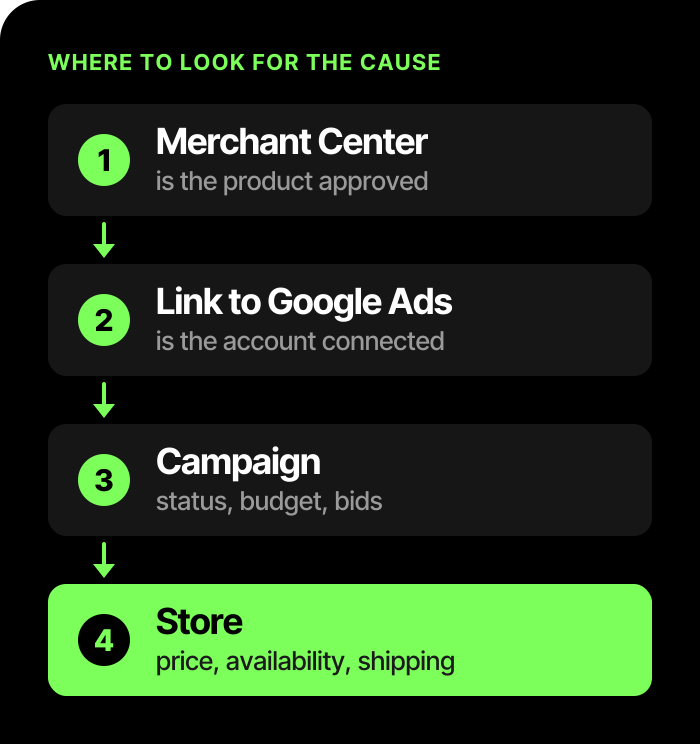
The order in which to look for the cause:
Merchant Center: disapprovals and data problems
If a product has the "Not approved" status, open its card or the "Needs attention" section and fix the errors from the list. The most common causes are:
- the feed is missing required attributes: ID, title, link, photo, price, description, availability, as well as the brand and identifiers that are required for your specific product (GTIN means the one assigned by the manufacturer; check the specification for MPN requirements; do not invent missing values);
- the data in the feed does not match the data on the product page;
- the site lacks information about the company, shipping terms or returns;
- the product page does not open, or opens differently from what the buyer sees.
If a product was disapproved or the account was suspended, go to the action plan for disapproved products and a Merchant Center suspension. Below we check what stops approved products from showing.
Fixed the errors, but the status did not change? Make sure Merchant Center has received the corrected data and that all the stated reasons are resolved. The status may update after an automatic check. Request a review following the instructions for your specific error; do not file an appeal just because the status has not changed yet.
The feed is not updating
Products from a feed "age". Google treats data from a file as outdated and does not show the product if it has not been updated for a long time: under Google's rules as of November 2026, a product expires 30 days after its last update. This does not apply to products added to Merchant Center manually. Products with the expiration_date attribute stop showing after the specified date.
What to check:
- Whether a feed fetch schedule is set up and when it last ran successfully.
- Whether file generation on the site has broken: after a CMS or module update, the feed sometimes returns an empty file or old addresses.
- Whether feed attributes were changed so that your best products dropped out of the selection or out of the campaign filter.
Merchant Center is not linked to Google Ads
Without a link between the accounts, Shopping ads will not launch. If Merchant Center is not linked, or the link was removed, the products from that Merchant Center are not eligible to show in Shopping campaigns, and you cannot create new Shopping campaigns. After the link is removed, campaigns stop using its product data; whether there are any other impressions depends on the campaign type and settings.
Check the following:
- the link is created by the Merchant Center admin, and the Google Ads account admin confirms it. If you are the admin of both accounts, the confirmation happens automatically;
- a regular ad account is connected to Merchant Center, not a manager account (MCC);
- a campaign is linked to only one Merchant Center account. If you connected the wrong one, you need a new campaign;
- at the time of linking, neither account may have policy violations at the account level.
The campaign: status, budget, bids and competition
Here the cause is most often simple. In its help center, Google advises going through these points:
- the campaign is enabled, today's date falls within its start and end dates, and no group or item is paused;
- the account is active, the budget is not used up, and there are no payment problems;
- the ad schedule does not limit the hours when your buyers are searching;
- the Products tab in Google Ads shows no disapproved or out-of-stock items;
- the country and language of the feed data match the campaign settings.
If all of this is fine, check your bids. A very low bid rarely wins the auction, and a target ROAS that is too strict limits reach: Google advises setting it lower for a new campaign so that the campaign can collect data. After you change the bid strategy or launch a new campaign, the "Learning" status can apply for up to 7 days. Automated strategies also need conversion data: if tracking is set up incorrectly, you will get few impressions.
The Auction insights report shows competition: impression share, overlap rate, outranking share. If your impression share is below 10%, the report shows no data. An empty report does not by itself explain why impressions are low: separately check product eligibility, budget limits and bids. Another trap: the same products in several campaigns can compete with each other. If the same product for one country is included in several Standard Shopping campaigns, the campaign that enters the auction is determined by their priority; with equal priority, the highest bid is used. Different selection rules apply to overlap with Performance Max, including Ad Rank. The duplication of a product alone does not prove that campaigns raise each other's bids.
Not sure where you are losing impressions? A Google Ads account audit shows what limits delivery: structure, bids and settings.
The store: price, availability, shipping, returns
Google regularly checks whether the feed matches the site. The most common mismatch is price. Googlebot compares the price in the feed with the price on the page and in the structured data markup. The check works on the HTML the server returns, so a price that a script inserts after the page loads can trigger an error.
Typical causes of mismatches:
- prices on the site change more often than the feed is updated;
- the structured data markup on the page has the wrong price;
- Google's crawler is served a different price or currency than a person is;
- a sale price has the wrong start and end dates or the wrong time zone.
Fix the price in the feed so that it matches the site, and request a review. According to Google's help, a repeat review of the site can take up to 12 hours, and you cannot submit a new request during that time.
Then check the small things:
- Availability. The
out_of_stockstatus means the product cannot be bought right now. If you still accept orders and the product is waiting for a delivery, setbackorder; for new items before release, setpreorder. For both, passavailability_dateand show the date the product becomes available for shipping on the product page. The availability status in the feed must match what the buyer sees. - Shipping. If shipping is not set up for the country where you want to show, the campaign may not launch. For free listings, the return terms must be described on the site, and the requirements for shipping data depend on the country, so check them for yours.
- Minimum order. If a minimum order amount is set in Merchant Center and the shipping cost is calculated from the product price, products cheaper than this amount do not show. With other settings, Google may display the minimum order amount; whether it is displayed depends on the product price and the chosen shipping service.
- Account status. Check that the store's website address in Merchant Center is verified and the account is not suspended.
Free listings or ads: what exactly you are checking
Free listings and Shopping ads take data from the same Merchant Center but work under different rules, so be clear about where exactly you expect to see the product.
- Free listings can appear in Search, on the Shopping tab, in Google Images, Maps, YouTube and other services. For most accounts they are turned on by default, but Google does not guarantee that shoppers will see your product: visibility depends on how well the data matches the query.
- Shopping ads require a link to Google Ads, a budget, bids and a running campaign. They show only in ad placements.
So a product can appear for free and at the same time have no impressions in ads, and the other way around. Look separately at the status in Merchant Center and at the campaign reports.
When to hand the search for the cause to specialists
If you have gone through the checklist and found no cause, it is often hidden in a combination of several factors: the feed updates irregularly, and the campaign structure makes products compete with each other. We take on Google Shopping and Merchant Center setup, fix the feed and the link with Google Ads, and if needed we start with an account review. If ads have already been launched and impressions do not appear, you will find the overall picture of the tools on the Google Ads page.
Frequently asked questions
How long does the review of a new or changed product take?
Google states that new and changed products can take 24–48 hours to be reviewed, and the first review of a new account takes up to 3–5 business days. If it drags on, Google advises checking the site, the contact details and the product data for policy compliance, and then submitting a review request.
Why is the product approved but I cannot find it in search?
Approval only means the product is eligible to show. Impressions depend on the query, competition, bids, your visibility setting in Merchant Center, and for ads also on the link with Google Ads and the campaign settings. For free listings, Google does not guarantee impressions.
Do I have to pay for my products to be visible?
No. Free listings work without pay-per-click costs, but you can control impressions, bids and reach only in advertising. How many orders it brings depends on the catalog, price and competition, so a result cannot be guaranteed.
How do I check that Merchant Center is linked to Google Ads?
In Merchant Center, open the settings, the connected services section, and see whether the right Google Ads account is among them. In Google Ads you can see the same in the data management section. If there is no link, Shopping campaigns cannot use product data.