
What Google Merchant Center is and why a store needs it
Merchant Center stores and checks the data about an online store's products: prices, photos, availability and attributes. "Google Shopping" means the product listings and placements where shoppers see your products. Bids, conversions and the rest of the ad settings live in Google Ads, and without a link to Merchant Center you cannot launch a Shopping campaign.
What it gives you:
- Free listings. In a new account they are on by default: your products can appear in Google Search, on the Shopping tab and in Google Images. You do not pay for impressions or clicks, but impressions are not guaranteed.
- Shopping ads. They are paid separately in Google Ads.
- Diagnostics: the service shows why products failed the review.
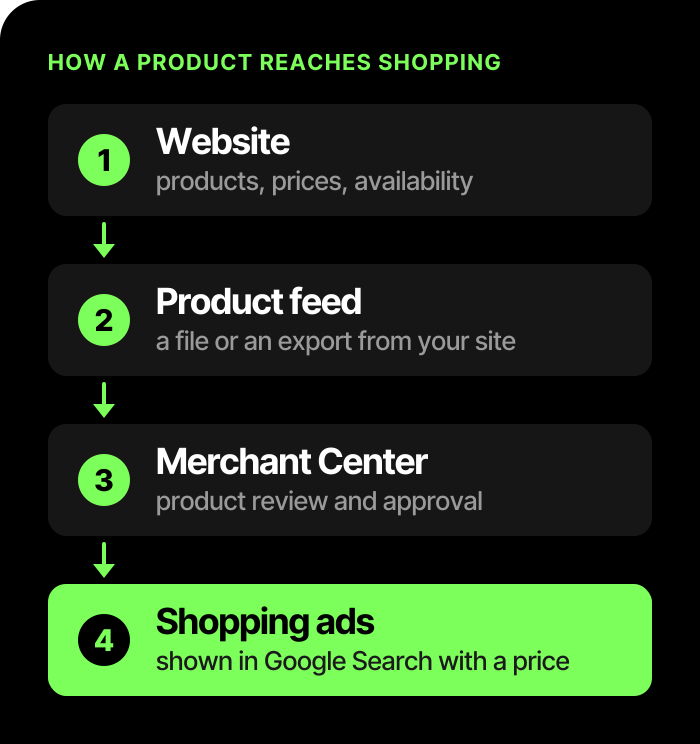
A product's path from your site to an impression:
Google replaced the classic interface with a new one, known as Merchant Center Next: in 2024 Google announced that all accounts would move to it. So older video tutorials may not match your account.
What to prepare before you start
- The Google account of the business owner, not of a contractor: otherwise it is hard to get access back later. One Google account can create only one Merchant Center account. Give a contractor access rather than the account itself: to link Google Ads you need the admin role, and the invitation has to be accepted.
- You choose the country when you create the account, and you cannot change it later. Ukraine is on the list of Shopping countries, and the currency is the hryvnia (UAH, ₴).
- A working site: a product goes into the cart, an order is placed without errors, and there is at least one ordinary payment method (card, invoice or cash on delivery). Card details are entered on a page protected by SSL.
- Contacts on the site: a form, email, phone number or a social media page.
- A return policy that is easy to find.
- The full cost to the buyer before checkout: price, shipping, fees.
- The language of the product data must match the language of the product pages and the language chosen for the data source. For another language, create a separate source with links to the matching pages.
How to set up Merchant Center: the order of steps
- Create the account. Sign in with the owner's Google account and enter the name, address, working hours and country. The details must be real.
- Verify the site and claim it for the account.
- Set up shipping. Enter the order handling time, the transit time and the cost. Products can be disapproved if Merchant Center has no shipping settings for the country of sale in the product's currency.
- Add products.
- Link Merchant Center to Google Ads.
- Work through the issues in the product list: Google explains how to fix them.
How to verify the site and claim it
Verification proves that the site is yours, and claiming reserves its address for your account: one site can be claimed by only one account. The methods:
- a tool from your e-commerce platform;
- a code sent to the email linked to the store;
- an HTML tag on the home page;
- an HTML file on the site's server;
- Google Tag Manager (you need admin rights in the Tag Manager account);
- Google Analytics, if you are an admin of the Analytics account already linked to this site. On third-party platforms this method may not work; then an HTML tag is better.
If the site is already verified in Google Search Console, go straight to claiming. Enter the address with https://, and only for your own domain.
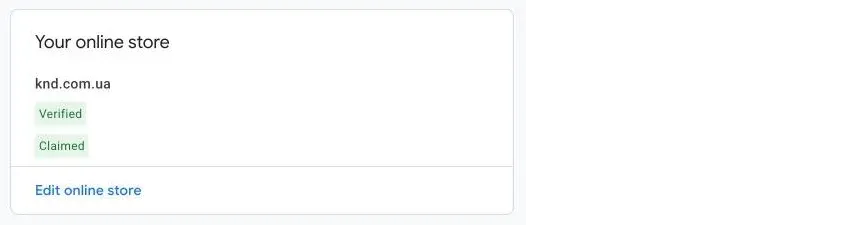
This is how it looks in a client store's account: the site is verified and its ownership is claimed.
How to add products
You can combine the methods:
| Method | How it works | Who it suits |
|---|---|---|
| From the site, automatically | Google finds products from schema.org markup on your pages and adds new ones itself. Google recommends adding the markup to all product pages | A small catalog with markup on the site |
| Platform integration, for example Shopify | Changes can reach Merchant Center in 24 to 48 hours | A store on a platform with a ready integration |
| Feed file | You upload it once or host it at a link: then Google fetches the file every 24 hours. | You need control over prices, stock and attributes |
| Google Sheet | Follows a Google template and syncs every 24 hours | A small catalog and a CMS that cannot produce a feed |
| Manually | One product at a time. Available only when the account already has products | A few products or a one-off fix |
| Merchant API | Suits large catalogs and frequent updates | A large catalog and an in-house developer |
Format errors or missing data in the feed can cause errors in the account. Google ended support for the old Content API for Shopping on August 18, 2026 (its sunset date). From September 1, requests to it began to return a 410 error intermittently, and a full shutdown is expected in early 2027. If your feed or module still works through the Content API, move to the Merchant API. Platforms such as Shopify migrate on their own.
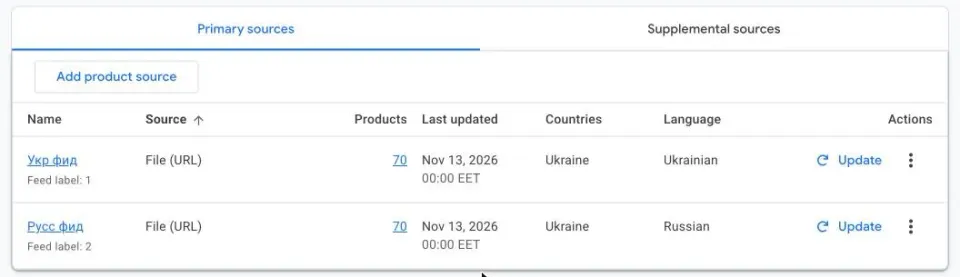
This is how the primary data sources look in a client store's account: two feeds, one for Ukrainian and one for Russian.
A supplemental feed does not add or remove products. It adds to or overwrites attributes of the primary feed: for example, labels or titles you do not want to edit on the site. Turn on Advanced data source management for it; the product IDs, language and source label must match the primary source.
Automatic updates of price, availability and condition are on by default: Google may adjust the data based on your site. Check their status in the account.
To learn how to export a feed from popular CMSs, read the articles on the product feed for Merchant Center on OpenCart and Merchant Center on WooCommerce.
Which product data is required
Every product needs a unique ID, a title, a description, a link to the page and to the main photo, a price with currency, and availability. In addition:
- brand: new products need a real brand (except films, books and music recordings). Do not make one up and do not write "No brand"; if there is no brand or the product is your own make, check Google's rules for the brand attribute;
- GTIN: provide it if the manufacturer assigned one: free listings require it for such products, and Google's specification strongly advises giving it;
- MPN is needed for products without a GTIN, if the manufacturer assigned them an MPN. If there is no such code, do not invent one; for products without identifiers, check the identifier_exists rules;
- condition is required for used and refurbished products.
The attributes depend on the category, the country and how the products are shown. For clothing you usually add color, size, age group, gender and a variant group ID; for variants, pass the characteristics they differ by. The requirements for free listings and for Shopping ads differ, so check Google's specification for your category.
The key values in one place:
| What to provide | Requirement |
|---|---|
| ID | Unique, up to 50 characters |
| Title | Up to 150 characters |
| Description | Up to 5000 characters |
| Price | A number with a period and an ISO 4217 currency code, for example 999.00 UAH. Keep the regular price in price and pass the discount separately in sale_price |
| Availability | One of: in_stock, out_of_stock, preorder or backorder. For preorder and backorder also give the date when the product will be available |
| Main photo | At least 500 × 500 pixels: Google starts enforcing this requirement on January 31, 2027 |
How to link Merchant Center to Google Ads
Without this link a Shopping campaign cannot be created. If you are an admin in both accounts, the link is confirmed automatically. Otherwise one side sends a request and the other confirms it.
You cannot link a manager account (MCC), only the ad account itself. A campaign is tied to one Merchant Center account. After the link is removed, campaigns on those products stop showing.
Before you launch ads, work out the return you need: what ROAS is and how to find its break-even level.
Why products fail the review
The most common reasons are:
| Reason | What to check |
|---|---|
| Price or availability does not match the product page | Compare several products in Merchant Center with the site. A typical cause: the feed updates less often than the prices |
| No shipping settings | For the country of sale, in the product's currency, there must be handling time, transit time and cost |
| The data does not follow the specification | All required attributes are filled in and the file format is correct |
| The site breaks Google's requirements | Contacts are there, the return policy is easy to find, an order can be completed, and the cost is visible before checkout. Hidden fees are also covered by the Misrepresentation policy |
| The category is prohibited or restricted | Weapons, ammunition and tobacco products are prohibited, among others. Separate restrictions apply to alcohol, medical products and medicines, adult products and gambling-related content |
After you fix the data, Google rechecks the product on its own. If you disagree with the decision, submit a review request, but first remove all violations: otherwise the request may be rejected. Under the Misrepresentation policy Google usually gives 7 or 28 calendar days to fix the problem, and serious violations can lead to the account being suspended without a warning.
How to check that everything works
- Open several products and compare the price, availability and photo in Merchant Center with the site.
- If the problem repeats across many products, look for it in the feed or on the site.
- If the price changed before the feed updated, the old price may still appear in ads. Check how often the source updates and the status of automatic updates.
Before you launch ads, go through this list:
- the country and currency are chosen correctly (Ukraine, hryvnia);
- the site is verified and claimed for the account;
- shipping is set up for the country of sale;
- products are added and the list has no unresolved issues;
- the price and availability in Merchant Center match the site;
- products that have a GTIN include it, and the brand is real;
- Merchant Center is linked to the Google Ads ad account;
- automatic updates of price and availability are checked.
Google makes the decisions and sets the timing, so nobody can guarantee the result of a review. If you have already run ads and the result is not what you want, start with a Google Ads account audit; for the overall picture of channels, see the Google Ads page. And if you want to hand the launch over completely, we take on registration, site verification, the feed, analysis of disapprovals and the link to Google Ads: Google Shopping and Merchant Center setup, turnkey.
If products are already disapproved or the account is suspended, read Merchant Center disapproved products or suspended the account. If products are approved but not showing, go through the checklist for Google Shopping.
Frequently asked questions
Does Merchant Center work in Ukraine?
Yes. Ukraine is on the list of countries supported by Merchant Center (the Shopping tab is available), and the currency is the hryvnia.
Is Merchant Center paid?
No, Merchant Center itself is free. Free listings need no payment for impressions or clicks, while Shopping ads are paid separately in Google Ads.
Is it required to provide a GTIN?
Yes, if the manufacturer assigned a GTIN to the product: for free listings it is required, and Google's specification strongly advises giving it. Without a GTIN you need an MPN, if the manufacturer assigned one; you must not invent codes.
Do I need a feed if I already have a site?
No, Google can find products from schema.org markup and add them automatically. A separate feed gives you more control over prices, stock and attributes.
How long does the review take?
According to Google's help, a product review usually takes up to 3–5 business days. This is a guideline, not a guaranteed time. A review request for an account under the Misrepresentation policy is usually handled in about 7 business days, and complex cases take longer.
How is Merchant Center different from Google Shopping and Google Ads?
Merchant Center stores and checks the data about products. Google Shopping refers to the places where shoppers see your products: free listings and Shopping ads. Bids, budget and conversions live in Google Ads, and without a link to Merchant Center you cannot launch a Shopping campaign.
Can I use Merchant Center without ads?
Yes. Free listings are on by default in a new account, and you do not pay for impressions or clicks, but impressions are not guaranteed. For Shopping ads you also need a Google Ads account.